Chapter 4: JSON Data
Introduction
In this chapter, we’ll discuss SingleStore’s support for JavaScript Object Notation (JSON) data. JSON is a popular data format today and can be extremely useful for applications that need to capture information about objects that may vary in their attributes. JSON would be particularly useful for applications such as e-commerce or a library, where we may be storing a range of products that have quite different characteristics from each other. We’ll look at some examples of this shortly.
We’ll build a small inventory system to manage a library’s collection of books, journals and multimedia materials. This example is inspired by an excellent tutorial by Noman Ur Rehman available on DigitalOcean1. We’ll see that it is effortless to store, retrieve and query JSON data using SingleStore. We’ll also build a quick visual front-end to our inventory system using Laravel and PHP.
Create the Database and Tables
In the SingleStore Portal, let’s use the SQL Editor to create a new database. Call this library_db, as follows:
CREATE DATABASE IF NOT EXISTS library_db;
We’ll also create several tables, as follows:
USE library_db;

DROP TABLE IF EXISTS authors;
CREATE TABLE IF NOT EXISTS authors (
    id INT PRIMARY KEY,
    name VARCHAR(100),
    nationality VARCHAR(50)
);

DROP TABLE IF EXISTS publishers;
CREATE TABLE IF NOT EXISTS publishers (
    id INT PRIMARY KEY,
    name VARCHAR(100),
    location VARCHAR(100)
);

DROP TABLE IF EXISTS items;
CREATE TABLE IF NOT EXISTS items (
    id INT PRIMARY KEY,
    title VARCHAR(200),
    item_type VARCHAR(50),
    publisher_id INT,
    metadata JSON NOT NULL
);
There is a one-to-many (1:m) relationship between publishers and items, where each publisher can produce multiple books, journals or multimedia content. The schema uses a flexible metadata column to store item-specific attributes in JSON format. By using NOT NULL on the column, SingleStore will raise an error if there is an attempt to store invalid JSON.
Populate Database Tables
Let’s now populate the tables. First, the authors table:
INSERT INTO authors (id, name, nationality) VALUES
(1, 'Clara Penrose', 'British'),
(2, 'Dmitri Ivanov', 'Russian'),
(3, 'Mei-Ling Zhang', 'Chinese');
Next, the publishers table:
INSERT INTO publishers (id, name, location) VALUES
(1, 'Aurora Press', 'London, UK'),
(2, 'Maple Leaf Publishing', 'Toronto, Canada'),
(3, 'Lotus House', 'Beijing, China');
Finally, the items table:
Books
First, let’s load the data for Books:
-- Books (flat JSON)
INSERT INTO items (id, title, item_type, publisher_id, metadata) VALUES
(1, 'The Quantum Garden', 'book', 1, '{"isbn": "978-0-123456-47-2", "pages": 320, "language": "English", "author_id": 1}'),
(2, 'Empire of Winds', 'book', 2, '{"isbn": "978-1-234567-89-3", "pages": 290, "language": "English", "author_id": 2}'),
(3, 'Pathways to Silk', 'book', 3, '{"isbn": "978-9-876543-21-0", "pages": 350, "language": "Chinese", "author_id": 3}'),
(4, 'Under Northern Lights', 'book', 1, '{"isbn": "978-0-111222-33-4", "pages": 400, "language": "English", "author_id": 1}'),
(5, 'Siberian Dreams', 'book', 2, '{"isbn": "978-8-765432-10-9", "pages": 275, "language": "Russian", "author_id": 2}');
We have no nested documents or arrays but a flat JSON structure. For example:
{
  "isbn": "978-0-123456-47-2",
  "pages": 320,
  "language": "English",
  "author_id": 1
}
Journals
Next, let’s load the data for Journals:
-- Journals (JSON with array of article titles)
INSERT INTO items (id, title, item_type, publisher_id, metadata) VALUES
(6, 'Journal of Advanced Robotics - Vol 12', 'journal', 2,
 '{"volume": 12, "year": 2022, "editor": "Dr. Helen Moritz", "articles": [
     "Autonomous Drones in Urban Spaces",
     "Swarm Intelligence in Rescue Missions",
     "Adaptive Control in Humanoid Robots",
     "Robot Learning from Demonstration"
 ]}'),
(7, 'Neuroscience Frontier - Issue 8', 'journal', 1,
 '{"volume": 8, "year": 2023, "editor": "Prof. Alan Greene", "articles": [
     "Neural Plasticity in Adults"
 ]}'),
(8, 'Cultural History Review - Q3 Edition', 'journal', 3,
 '{"volume": 21, "year": 2023, "editor": "Dr. Olivia Chen", "articles": [
     "Myth & Memory in East Asia",
     "Oral Traditions and Digital Preservation",
     "Historical Narratives in Postcolonial Societies"
 ]}'),
(9, 'GreenTech Journal - April', 'journal', 2,
 '{"volume": 9, "year": 2022, "editor": "Samuel Takahashi", "articles": [
     "Vertical Farming Breakthroughs",
     "Sustainable Batteries for Grid Storage",
     "AI in Climate Modeling",
     "Smart Irrigation Systems",
     "Eco-Friendly Construction Materials"
 ]}'),
(10, 'Modern Linguistics Digest - Spring', 'journal', 1,
 '{"volume": 6, "year": 2023, "editor": "Dr. Sara König", "articles": [
     "Semantic Drift in Digital Age",
     "Code-Switching Patterns in Bilingual Youth"
 ]}');
We have an array structure for article titles. For example:
{
  "volume": 12,
  "year": 2022,
  "editor": "Dr. Helen Moritz",
  "articles": [
    "Autonomous Drones in Urban Spaces",
    "Swarm Intelligence in Rescue Missions",
    "Adaptive Control in Humanoid Robots",
    "Robot Learning from Demonstration"
  ]
}
Multimedia
Finally, let’s load the data for Multimedia:
-- Multimedia (JSON with nested contributor)
INSERT INTO items (id, title, item_type, publisher_id, metadata) VALUES
(11, 'Ocean Deep - A Documentary', 'multimedia', 3,
 '{"format": "DVD", "duration_min": 92, "language": "English",
   "contributors": {
      "narrator": "David Stone",
      "director": "Lisa Wong",
      "editor": "James Patel"
   }
 }'),
(12, 'Symphony No. 9 Performance', 'multimedia', 1,
 '{"format": "Blu-Ray", "duration_min": 78, "language": "German",
   "contributors": {
      "conductor": "Klaus Berger",
      "violinist": "Maria Rossi"
   }
 }'),
(13, 'Machine Learning Explained', 'multimedia', 2,
 '{"format": "MP4", "duration_min": 60, "language": "English",
   "contributors": {
      "presenter": "Anna Dupont",
      "animator": "John Kim",
      "scriptwriter": "Elena Grant"
   }
 }'),
(14, 'The Story of Silk Road', 'multimedia', 3,
 '{"format": "DVD", "duration_min": 85, "language": "Mandarin",
   "contributors": {
      "host": "Ming Zhao",
      "director": "Yuki Nakamura",
      "translator": "Akira Tanaka",
      "composer": "Minji Park"
   }
 }'),
(15, 'Astrophysics Today', 'multimedia', 2,
 '{"format": "Blu-Ray", "duration_min": 70, "language": "English",
   "contributors": {
      "presenter": "Neil Quinn",
      "editor": "Farah Idris",
      "consultant": "Liam Becker"
   }
 }');
We have nested contributors. For example:
{
  "format": "DVD",
  "duration_min": 92,
  "language": "English",
  "contributors": {
    "narrator": "David Stone",
    "director": "Lisa Wong",
    "editor": "James Patel"
  }
}
From these examples, we can see that we may need to store our JSON data in various ways and the structure of the data may vary depending upon the attributes we wish to store. SingleStore can handle these different requirements and comes with a wide range of JSON functions2 that can help.
Example Queries
Now that our data are safely inside SingleStore, let’s look at ways to query that data.
First, let’s see what SingleStore returns for the metadata column using JSON_GET_TYPE:
SELECT JSON_GET_TYPE(metadata)
FROM items;
The result should be:
+-------------------------+
| JSON_GET_TYPE(metadata) |
+-------------------------+
| object                  |
| object                  |
| object                  |
| object                  |
| object                  |
| object                  |
| object                  |
| object                  |
| object                  |
| object                  |
| object                  |
| object                  |
| object                  |
| object                  |
| object                  |
+-------------------------+
All the rows are JSON objects.
Now let’s select all books and extract the ISBN and language from metadata:
SELECT
    id,
    title,
    metadata::$isbn AS isbn,
    metadata::$language AS language
FROM items
WHERE item_type = 'book'
ORDER BY id;
Notice that we can use the double-colon (::) to specify a path to the specific attribute that we’re interested in. Example output:
+----+-----------------------+-------------------+----------+
| id | title                 | isbn              | language |
+----+-----------------------+-------------------+----------+
|  1 | The Quantum Garden    | 978-0-123456-47-2 | English  |
|  2 | Empire of Winds       | 978-1-234567-89-3 | English  |
|  3 | Pathways to Silk      | 978-9-876543-21-0 | Chinese  |
|  4 | Under Northern Lights | 978-0-111222-33-4 | English  |
|  5 | Siberian Dreams       | 978-8-765432-10-9 | Russian  |
+----+-----------------------+-------------------+----------+
Next, let’s get all journals, showing the editor and the number of articles:
SELECT
    id,
    title,
    metadata::$editor AS editor,
    JSON_LENGTH(metadata::$articles) AS article_count
FROM items
WHERE item_type = 'journal';
Example output:
+----+---------------------------------------+-------------------+---------------+
| id | title                                 | editor            | article_count |
+----+---------------------------------------+-------------------+---------------+
|  6 | Journal of Advanced Robotics - Vol 12 | Dr. Helen Moritz  |             4 |
|  9 | GreenTech Journal - April             | Samuel Takahashi  |             5 |
|  7 | Neuroscience Frontier - Issue 8       | Prof. Alan Greene |             1 |
|  8 | Cultural History Review - Q3 Edition  | Dr. Olivia Chen   |             3 |
| 10 | Modern Linguistics Digest - Spring    | Dr. Sara König    |             2 |
+----+---------------------------------------+-------------------+---------------+
Next, let’s query multimedia items and get contributors as JSON objects. We’ll limit the output to avoid word-wrap:
SELECT
    SUBSTRING(metadata::$contributors, 1, 60) AS contributors
FROM items
WHERE item_type = 'multimedia';
Example output:
+--------------------------------------------------------------+
| contributors                                                 |
+--------------------------------------------------------------+
| {"consultant":"Liam Becker","editor":"Farah Idris","presente |
| {"conductor":"Klaus Berger","violinist":"Maria Rossi"}       |
| {"director":"Lisa Wong","editor":"James Patel","narrator":"D |
| {"composer":"Minji Park","director":"Yuki Nakamura","host":" |
| {"animator":"John Kim","presenter":"Anna Dupont","scriptwrit |
+--------------------------------------------------------------+
We’ll now join books with authors by author_id extracted from the JSON metadata:
SELECT
    b.id,
    b.title,
    a.name AS author_name,
    a.nationality
FROM items b
JOIN authors a ON a.id = CAST(b.metadata::$author_id AS SIGNED)
WHERE b.item_type = 'book';
Example output:
+----+-----------------------+----------------+-------------+
| id | title                 | author_name    | nationality |
+----+-----------------------+----------------+-------------+
|  3 | Pathways to Silk      | Mei-Ling Zhang | Chinese     |
|  1 | The Quantum Garden    | Clara Penrose  | British     |
|  5 | Siberian Dreams       | Dmitri Ivanov  | Russian     |
|  2 | Empire of Winds       | Dmitri Ivanov  | Russian     |
|  4 | Under Northern Lights | Clara Penrose  | British     |
+----+-----------------------+----------------+-------------+
Let’s now search journals where any article title contains “AI”:
SELECT
    i.id,
    i.title,
    i.metadata::$editor AS editor,
    a.table_col AS article
FROM items AS i
JOIN TABLE(JSON_TO_ARRAY(i.metadata::articles)) AS a
WHERE i.item_type = 'journal' AND a.table_col LIKE '%AI%';
Example output:
+----+---------------------------+------------------+--------------------------+
| id | title                     | editor           | article                  |
+----+---------------------------+------------------+--------------------------+
|  9 | GreenTech Journal - April | Samuel Takahashi | "AI in Climate Modeling" |
+----+---------------------------+------------------+--------------------------+
Now, we’ll add a new JSON field called edition to a book’s metadata:
UPDATE items
SET metadata::$edition = 'Second'
WHERE id = 1 AND item_type = 'book';
To check that this was added correctly, we can run the following:
SELECT metadata::edition
FROM items
WHERE id = 1 AND item_type = 'book';
Example output:
+-------------------+
| metadata::edition |
+-------------------+
| "Second"          |
+-------------------+
Finally, let’s remove the language field from a book’s metadata:
UPDATE items
SET metadata = JSON_DELETE_KEY(metadata, 'language')
WHERE id = 1 AND item_type = 'book';
To check that this was correctly removed, we can run the following:
SELECT metadata::language
FROM items
WHERE id = 1 AND item_type = 'book';
Example output:
+--------------------+
| metadata::language |
+--------------------+
| NULL               |
+--------------------+
SingleStore supports an extensive set of functions3 that can be used with JSON data.
Visualization using Laravel and PHP
Running the commands in the previous sections using the SQL Editor in our SingleStore Portal account is a great way to test our code and quickly view the results. However, we can go a step further and build a simple web interface that allows us to see the data and perform some data management operations. In this first application development iteration, we’ll focus on Read, Update and Delete operations.
We’ll delete the existing database and recreate it to have the original dataset.
Install the Required Software
We’ll build our web interface using Laravel and PHP. Before continuing, ensure that the following software is installed on your system:
- PHP 8.2 or later
- The PHP XML extension
- A MySQL-compatible PHP database driver
- Composer
Note: This project has been tested with PHP 8.2 and Composer 2.x on Linux.
The installation process varies depending on your operating system. Linux users can typically install these packages using their distribution’s package manager, as follows:
sudo apt update
sudo add-apt-repository ppa:ondrej/php
sudo apt update
sudo apt install php8.2-cli php8.2-xml php8.2-mysql
macOS and Windows users should follow the installation instructions provided by their preferred package management tools or installers.
Your environment may also need other packages.
To install Composer, we’ll follow the instructions on the download page4. On Linux, we’ll move Composer to the bin directory:
sudo mv composer.phar /usr/local/bin/composer
Next, we’ll create a project called e-library, as follows:
composer create-project laravel/laravel e-library
and then change to the project directory:
cd e-library
Note: If you downloaded or cloned the completed project from the book’s GitHub repository, extract the archive, open a terminal in the project directory and install the dependencies:
- composer install
- php artisan key:generate
We’ll now edit the .env file in the e-library directory:
DB_CONNECTION=mysql
DB_HOST=<host>
DB_PORT=3306
DB_DATABASE=library_db
DB_USERNAME="admin"
DB_PASSWORD="<password>"

SESSION_DRIVER=file
The <host> and <password> should be replaced with the values obtained from the SingleStore Portal when creating a cluster. Note also the use of double-quotes (“) for DB_USERNAME and DB_PASSWORD. We’ll also ensure that SESSION_DRIVER is set to file, as shown.
Note: If you downloaded or cloned the completed project from the book’s GitHub repository, the following files have already been created and you can skip this step.
Create Files
The following commands are only required when starting from a clean Laravel installation:
php artisan make:model -a Author
php artisan make:model -a Publisher
php artisan make:model -a Item
For each of Author, Publisher and Item, we obtain:
-
A migration in
database/migrations -
A model in
app/Models -
A controller in
app/Http/Controllers -
A seeder in
database/seeders
Migrations (database/migrations)
We’ll edit the Author migration file, so that we have the following:
public function up(): void
{
    Schema::create('authors', function (Blueprint $table) {
        $table->id();
        $table->string('name');
        $table->string('nationality');
        $table->timestamps();
    });
}
the Publisher migration file, so that we have the following:
public function up(): void
{
    Schema::create('publishers', function (Blueprint $table) {
        $table->id();
        $table->string('name');
        $table->string('location');
        $table->timestamps();
    });
}
and the Product migration file, so that we have the following:
public function up(): void
{
    Schema::create('items', function (Blueprint $table) {
        $table->id();
        $table->string('title');
        $table->string('item_type');
        $table->unsignedInteger('publisher_id');
        $table->json('metadata');
        $table->timestamps();
    });
}
Models (app/Models)
We’ll edit the Publisher model file, so that we have the 1:m relationship with Item:
class Publisher extends Model
{
    /** @use HasFactory<\Database\Factories\PublisherFactory> */
    use HasFactory;

    // A publisher has many items

    public function items()
    {
        return $this->hasMany('Item');
    }
}
and the Item model file so that we can access the JSON data by casting the attributes to an array and create the relationship with Publisher:
class Item extends Model
{
    /** @use HasFactory<\Database\Factories\ItemFactory> */
    use HasFactory;

    public $timestamps = false;

    // Cast metadata JSON to array
    protected $casts = [
        'metadata' => 'array'
    ];

    // Each item has a publisher
    public function publisher()
    {
        return $this->belongsTo('Publisher');
    }

    protected $fillable = ['title', 'item_type', 'publisher_id', 'metadata'];
}
Controllers (app/Http/Controllers)
For the the web application, let’s focus on the ItemController. At the top of the file, we’ll add the following:
use App\Models\Author;
use App\Models\Publisher;
use App\Models\Item;
use Illuminate\Http\Request;
index()
We need to retrieve all the item data for the items index page and ensure that we have each item’s publisher name. This will require joins across the respective tables. We’ll also control the output by showing just five records per page using simplePaginate().
public function index()
{
    $items = Item::select('items.*', 'publishers.name as publisher_name')
        ->join('publishers', 'publishers.id', '=', 'items.publisher_id')
        ->orderBy('items.id')
        ->simplePaginate(5);

    return view('admin.index', compact('items'));
}
show()
To show a single item, we’ll perform a query similar to the query for index() but we’ll use first() to get an individual item record.
public function show(Item $item)
{
    $one_item = Item::select('items.*', 'publishers.name as publisher_name')
        ->join('publishers', 'publishers.id', '=', 'items.publisher_id')
        ->where('items.id', $item->id)
        ->first();

    return view('admin.show', compact('one_item'));
}
edit()
To edit an existing item, we’ll need to find the item to edit and we’ll also need to get all the publishers to be offered in a drop-down menu if the user wishes to change this item attribute.
public function edit($id)
{
    $item = Item::findOrFail($id);
    $publishers = Publisher::orderBy('id')->get();

    return view('admin.edit', compact('item', 'publishers'));
}
update()
We’ll allow updates to the item name, publisher and the JSON attributes in this first application development iteration.
public function update(Request $request, $id)
{
    $item = Item::findOrFail($id);

    $item->title = $request->input('title');
    $item->item_type = $request->input('item_type');
    $item->publisher_id = $request->input('publisher_id');

    $metadata = $request->input('metadata', []);
    foreach ($metadata as $key => &$value) {
        // Only decode if the value is a JSON string (array/dictionary format)
        if (is_string($value) && (str_starts_with($value, '{') || str_starts_with($value, '['))) {
            $decodedValue = json_decode($value, true);
            // Check if decoding was successful, else retain original string
            $value = json_last_error() === JSON_ERROR_NONE ? $decodedValue : $value;
        }
    }
    // Assign the processed attributes back to the item
    $item->metadata = $metadata;
    $item->save();

    return redirect()->route('items.index')->with('success', 'Item updated successfully');
}
destroy()
We can remove an item very easily by just using delete().
public function destroy($id)
{
    $item = Item::findOrFail($id);
    $item->delete();

    return redirect('/items')->with('success', 'Item has been deleted');
}
Routes (routes/web.php)
In the web.php file in the routes directory, we’ll add the following at the top:
use App\Http\Controllers\AuthorController;
use App\Http\Controllers\PublisherController;
use App\Http\Controllers\ItemController;
and this code further down:
Route::resource(
    'authors',
     AuthorController::class
);

Route::resource(
    'publishers',
    PublisherController::class
);

Route::resource(
    'items',
    ItemsController::class
);
Views (resources/views/admin)
The three blade files for the index page, show page and edit page can be found on GitHub. In those files, there will be code for formatting the data using HTML, presentation and editing using PHP. Also, from the GitHub repo we’ll copy the index.blade.php file to resources/views.
Run the Code
We’ll run the application from the e-library directory, as follows:
php artisan serve
In a web browser, we’ll enter the following:
http://localhost:8000/items
The output should be similar to Figure 4-1:
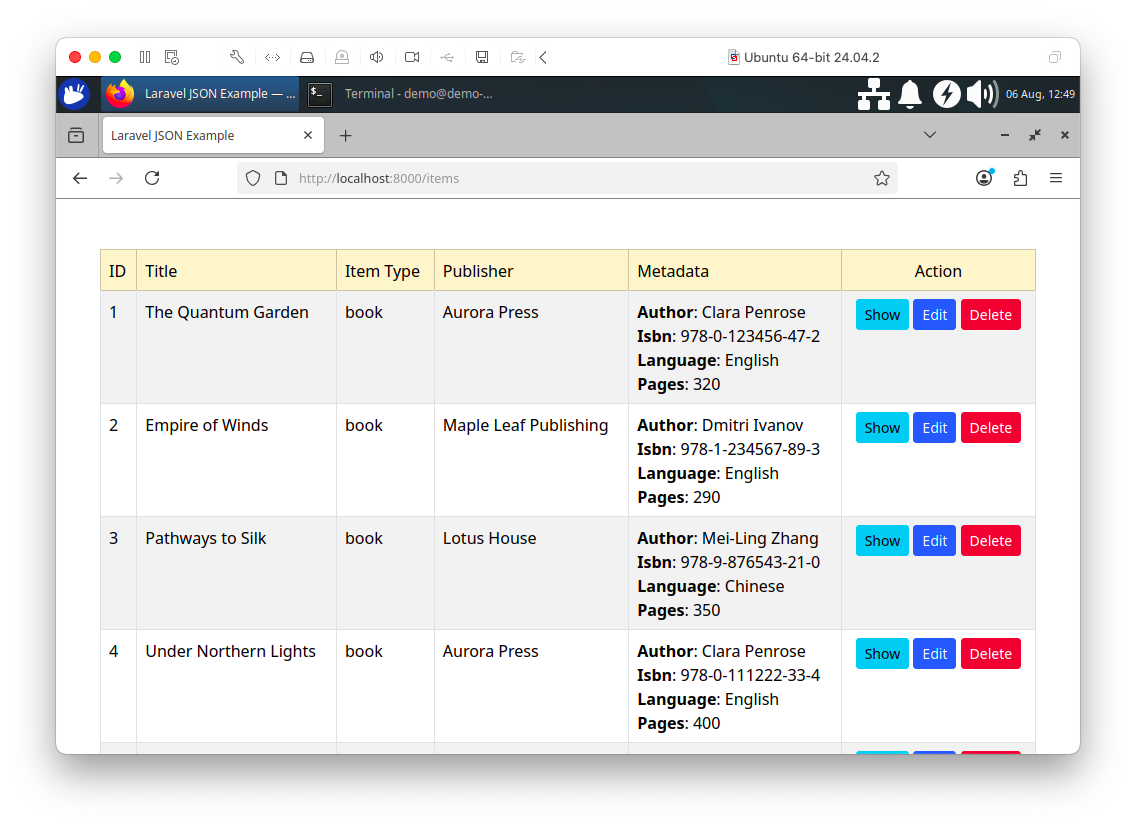
Figure 4-1. Index Page.
We can see the Items data correctly displayed for each item. The metadata are in JSON format. If we select Show, we can view the details about an item on a single page, as shown in Figure 4-2.
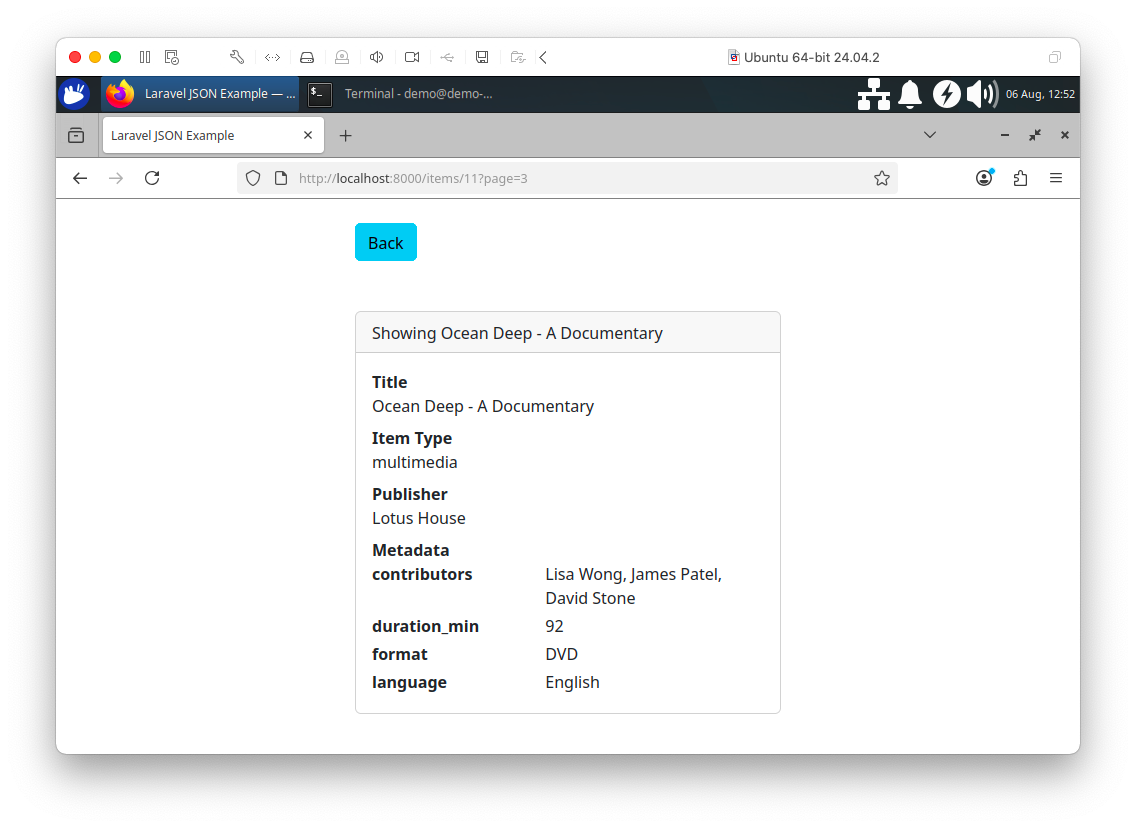
Figure 4-2. Show Individual Item.
From the index page, if we select Edit, we can edit an item, as shown in Figure 4-3.
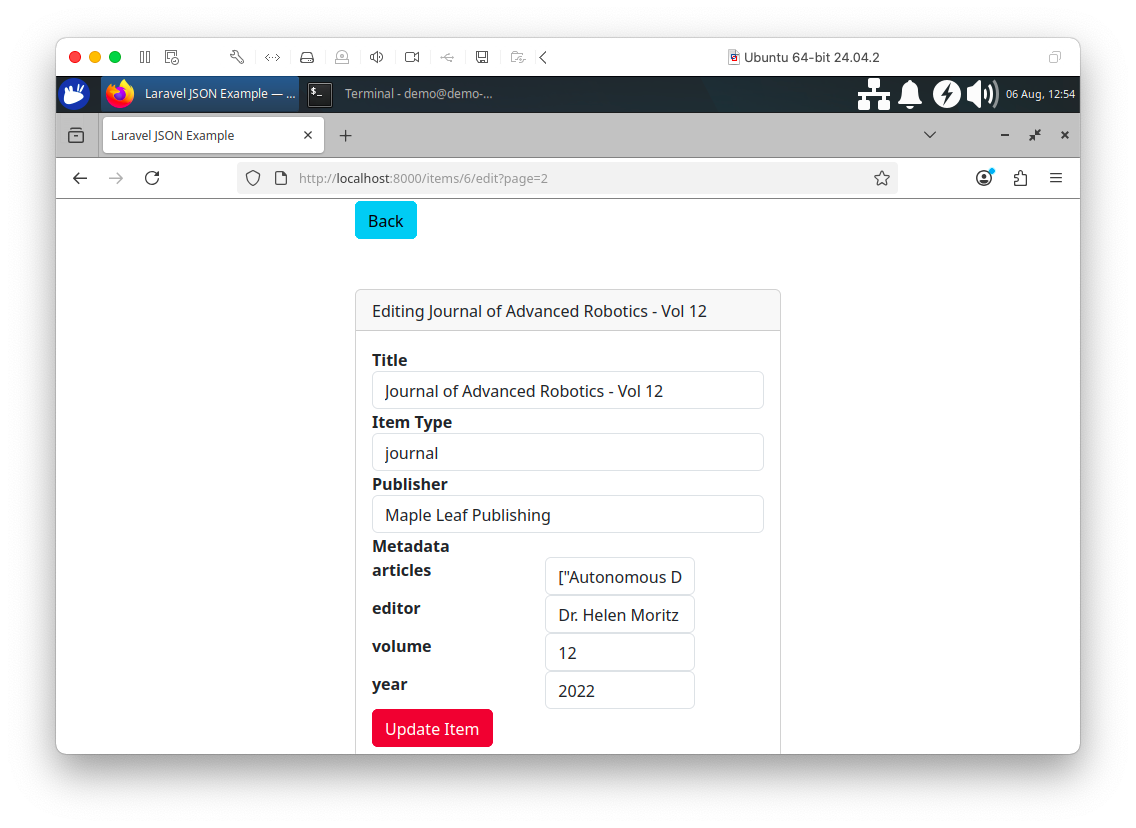
Figure 4-3. Edit Item.
Many fields, including the JSON data, can be fully edited.
Note: This example does not enforce strict data type validation for the JSON input. Additional client-side logic would be needed to ensure the integrity and correctness of the JSON structure.
Finally, if we select Delete from the index page, we can remove an item from the database. In Figure 4-4, an item has been deleted. We can confirm this by checking SingleStore using the SQL Editor in the Portal:
SELECT COUNT(*) FROM items;
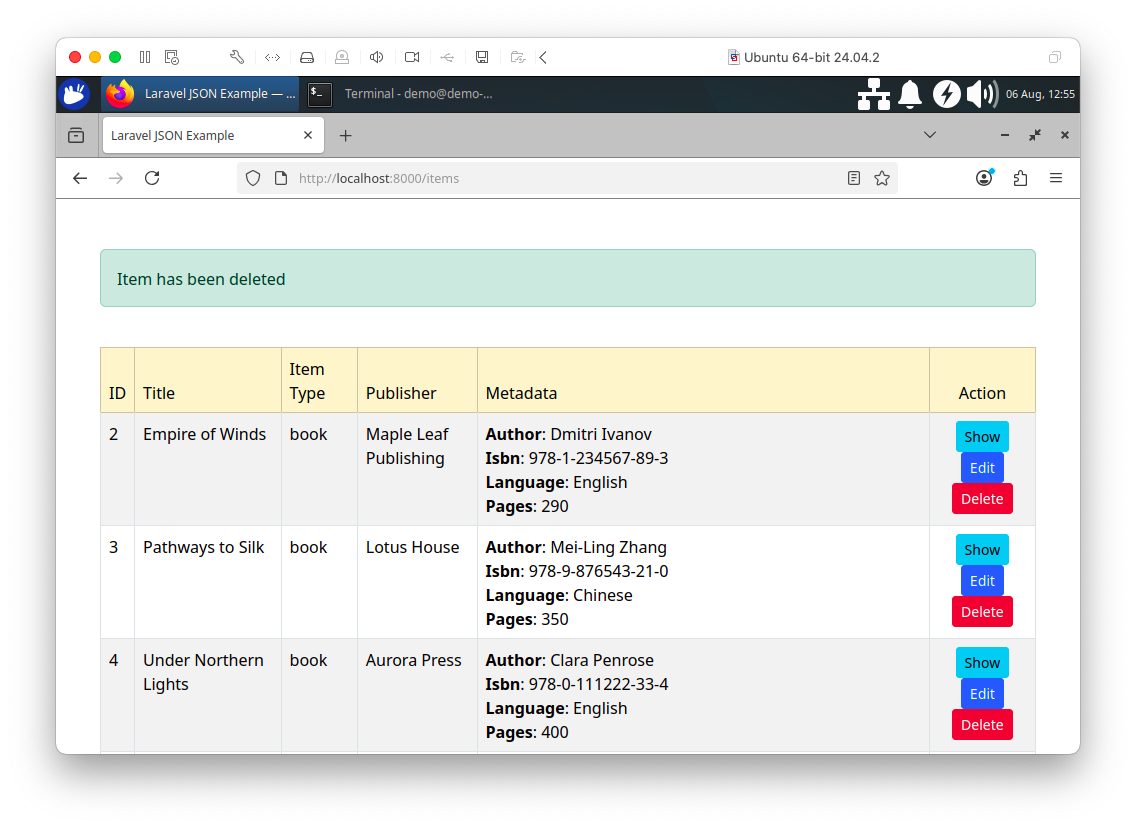
Figure 4-4. Delete Item.
Summary
In this chapter, we’ve seen that SingleStore can manage JSON data of varying complexity with ease. It supports a wide range of functions that can be used with JSON data and we have used a number of these functions in this chapter. Furthermore, we’ve seen that we can use SQL queries that combine operations on both Relational and JSON data. Finally, we’ve built a simple web interface to our database system using Laravel and PHP that enabled us to explore the data and make some modifications.